
Learn the BEST Excel keyboard shortcuts. Perfect for Beginners and for those who want to save time and work smarter.
It doesn’t matter if I’m delivering a Stage 1 or a Stage 3 Excel training course – when I’m demonstrating to the class, I whip around the screen, format, select and modify and update using shortcut keys.
And 9 times out of 10 someone will ask me, “how did you just do that, what was the shortcut you just used”?
Just recently, I ran a workshop where I showed the class how to quickly select large ranges of data using shortcut keys (see the ‘Selecting Quickly’ shortcuts below).
We were 10 minutes into the session, and the manager told me the time he would save by using the shortcuts was worth more than the price of the course! How great is that?
I LOVE sharing shortcuts, because I LOVE using them.
Hence, I have created this post to outline my favourite shortcut keys AND why I have created the ‘Cheat Sheet’ quick-reference PDF download for you too.
If you want to start saving time, download the Cheat Sheet and then choose 3 to 4 shortcuts each week to practice. Before you know it, they will become a habit, you will be saving a heap of time, and YOU will have people asking you “how did you just do that” 🙂
BTW, check out the shortcut key combination to insert emojis in the ‘Fun to Know’ section. I use this a lot!
The Absolute Essential Excel shortcut keys
Shortcut keys that everyone should have in there ‘tool-kit’. You’re going to use these a lot!!
|
Use this shortcut |
to do this |
|---|---|
|
CTRL + S |
To Save your file. F12 for Save As |
|
CTRL + Z |
To Undo. CTRL + Y will Redo |
|
CTRL + C |
To Copy the selected data |
|
CTL + X |
To Cut the selected data |
|
CTRL + V |
To Paste the data you recently Cut or Copied |
|
CTRL + P |
To go to the File, Print screen |
|
CTRL + O |
To go to the File, Open screen |
|
CTRL + N |
To create a New workbook (file) |
|
ALT + I, C |
To insert a new column |
|
ALT + I, R |
To insert a new row |
|
CTRL + – (minus symbol) |
To delete a row or column. Use after you have selected the row or column to be deleted |
Excel shortcut keys to Move Quickly
Shortcut keys to help you move and navigate with speed!
|
Use this shortcut |
to do this |
|---|---|
To open the Go To dialogue box. Enter the cell address you want to move to.Press ENTER. |
Move to the previous worksheet or next worksheet. Include SHIFT to select at the same time |
|
CTRL + (arrow keys) |
Move to the edge of the current table of data, in the direction of the arrow pressed |
CTRL + Home, CTRL + END |
Move to the beginning and the end of the worksheet |
|
Home |
Move to column A on the row you are currently on |
|
Page Up |
Move one screen up |
|
Page Down |
Move one screen down |
|
ALT + Page Down |
Move one screen right |
|
ALT + Page Up |
Move one screen left |
|
F5 | To open the Go To dialogue box. Enter the cell address you want to move to. Press ENTER. |
Excel shortcut keys to Select Quickly
Shortcut keys to help you select like a pro!
|
Use this shortcut |
to do this |
|---|---|
|
CTRL + SPACEBAR |
To select the entire column |
|
SHIFT + Spacebar |
To select the entire row |
|
SHIFT + click |
Select from the current cell to the cell you click |
|
SHIFT + (arrowkeys) |
Select one cell at a time in the direction of the arrow key pressed |
|
SHIFT + CTRL (arrow keys) |
SHIFT + CTRL(arrow keys) |
CTRL + Click | Press CTRL while clicking on additional ranges to include them in the one selection |
CTRL + A | Select a cell inside a data table, then press to select the entire table. Outside of a table, press to select the entire worksheet |
CTRL + . | Move to the corners of a selected area |
| CTRL + Home | Select to the first cell in the worksheet |
SHIFT + CTRL + End | Select to the last cell in the worksheet |
|
SHIFT + CTRL + Page Up or Page Down |
Select and group worksheets to the left or right |
Excel shortcut keys to Update Quickly
Shortcut keys to help you save precious time.
|
Use this shortcut |
to do this |
|---|---|
|
CTRL + F |
Locate data within your workbook quickly using Find |
|
CTRL + H |
Find and Replace data |
CTRL + DCTRL + R |
Fill data down or to the right through selected cells. Select the cell and the range you want to copy to first |
|
F4 |
Repeat the last thing you did. For example if you have just inserted a row press F4 to continue inserting more rows |
CTRL + 9 CTRL + 0 | Hide entire row Hide entire column |
SHIFT + CTRL + 9ALT, H, O, U, L |
Unhide rows. Select rows on either side of hidden row(s) first Unhide columns. Select columns on either side of hidden column(s) first |
Excel shortcut keys to Format Quickly
Shortcut keys for a ‘super quick’ make-over.
|
Use this shortcut |
to do this |
|---|---|
|
CTRL + B |
Bold |
|
CTRL + I |
Italics |
|
CTRL + U |
Underline |
|
CTRL + ~ |
Apply the General number format |
|
CTRL + ! |
Apply the Number format with 2 decimal places & thousands separator |
|
CTRL + # |
Apply a dd-mmm-yy date format |
|
CTRL + $ |
Apply the Currency format with 2 decimal places & thousands separator |
|
CTRL + % |
Apply a Percentage format, no decimal places |
|
CTRL + 1 |
Open the Format Cells dialog box |
|
ALT + H, B, A |
Apply ‘All Borders’ to the selected area |
|
ALT + H, B, N |
Remove Borders from the selected area |
|
ALT + SHIFT + F1 |
Inserts a new worksheet |
|
ALT + ENTER |
Add another line inside a cell, i.e. wrap to another line |
Excel shortcut keys to Edit Quickly
Shortcut keys to help you make speedy changes.
|
Use this shortcut |
to do this |
|---|---|
|
F2 |
Press to edit directly inside a cell |
|
ESC |
Press to cancel a selected area when using Copy or press to cancel an entry in the cell or Formula bar |
|
F4 (to lock a cell reference and make it absolute) |
In the Formula bar, highlight the cell address and then press F4. Keep pressing until you have the absolute setting you require, e.g. $A$3 |
Super handy Excel shortcut keys
Super handy when you need them.
|
Use this shortcut |
to do this |
|---|---|
CTRL + ;CTRL + ‘ | (semi colon) Insert today’s date. +SHIFT inserts the time. (apostrophe) Copy the cell above |
|
ALT + V, F, F | To open the Go To dialogue box. Enter the cell address you want to move to |
|
CTRL + ALT + V, V, ENTER |
Paste Values. Use CTRL + C to copy prior to using this shortcut |
|
ALT + ; |
Selects visible cells only. Use to quickly locate hidden rows/columns or to select and copy only visible cells without including hidden data |
|
CTRL + F1 |
Hide and display the Ribbon |
|
SHIFT + CTRL + L |
Turn Filtering on/off |
|
ALT + down arrow |
Access a drop-down list of content options within the same column |
|
F5 |
To open the Go To dialog box. Enter the cell address you want to move to |
|
ALT + = |
SUM a range. Be sure that you have selected ALL of the cells to be included in the total |
Teach yourself Excel shortcuts
Excel Search and shortcuts to improve your speed.
|
Use this shortcut |
to do this |
|---|---|
|
ALT + Q |
Press to access the Search box. Type what you want to do. Let Excel take over. Available in newer versions of Excel only |
|
Screen tip key combinations |
Move your mouse over any button on the Ribbon to see the keyboard shortcut combination that will activate it. Not all buttons have this |
|
ALT |
Press ALT to display onscreen shortcuts to access Ribbon tabs and buttons, e.g. ALT, H, B will access the Border gallery |
|
Add buttons to the QAT to create your own shortcuts |
Click the Customize Quick AccessToolbar button > More Commands, or right-click any button on the Ribbon to add buttons to the Quick AccessToolbar. Now press ALT and the QAT number to use it. |
Fun to know shortcut
Off topic…but fun! 🙂
|
Use this shortcut |
to do this |
|---|---|
|
Windows button + period (full-stop) |
To insert an emoji, press the Windows button + period (full stop). Use your arrow key to select the emoji you want and press ENTER. To search for an emoji, start typing what you are searching for and Windows will try to find a match 🙂 |
Watch the Excel 10 shortcut keys to navigate quickly tutorial
[Watch on YouTube] / [Subscribe to our YouTube Channel]
Was this blog helpful? Let me know in the comments below.
Want to Learn Excel Properly?
Join the Excel at Work Learning Hub
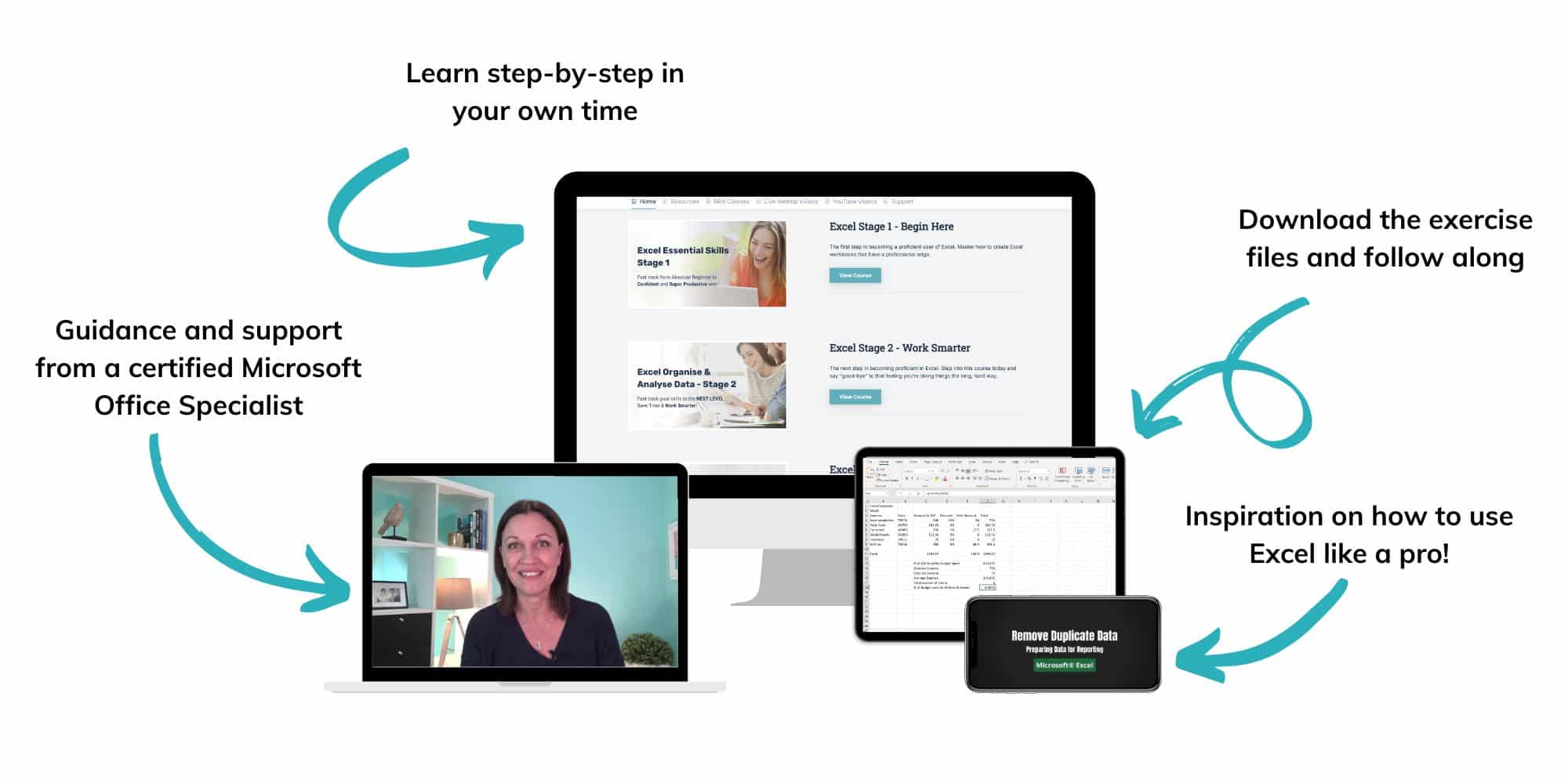
The Excel at Work Learning Hub is an online self-paced Excel training membership designed for people who use Excel at work—in offices, on sites, in schools, in small businesses, and everywhere in between.
Go from Beginner to Confident – Guaranteed!
Only $59NZ /month
Cancel anytime • No pressure • 14-day 100% Money Back Guarantee

Certified Microsoft Office Specialist
Was this blog helpful? I’m here to empower your journey with Excel, aiming to make your daily tasks more efficient and boost your potential.
Share your thoughts in the Comments below – your insights not only enrich others, they also help me tailor future content to your needs.
And if you’re looking to take a step further, join our exclusive ‘Insider Group‘. As a member, you’ll receive Weekly Super-Tips, and early access to in-depth tutorials. Sign up Today!
Happy Excel-ling!!


